
| Step-by-Step Guide |
|
1
|
|
2
|
📝
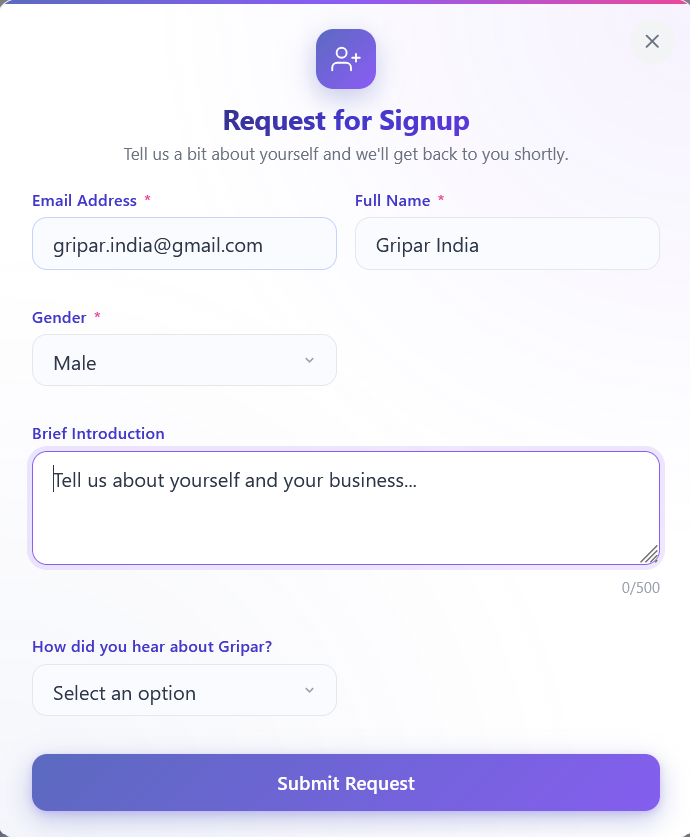
Locate “Request for Signup” & Fill in Your Details
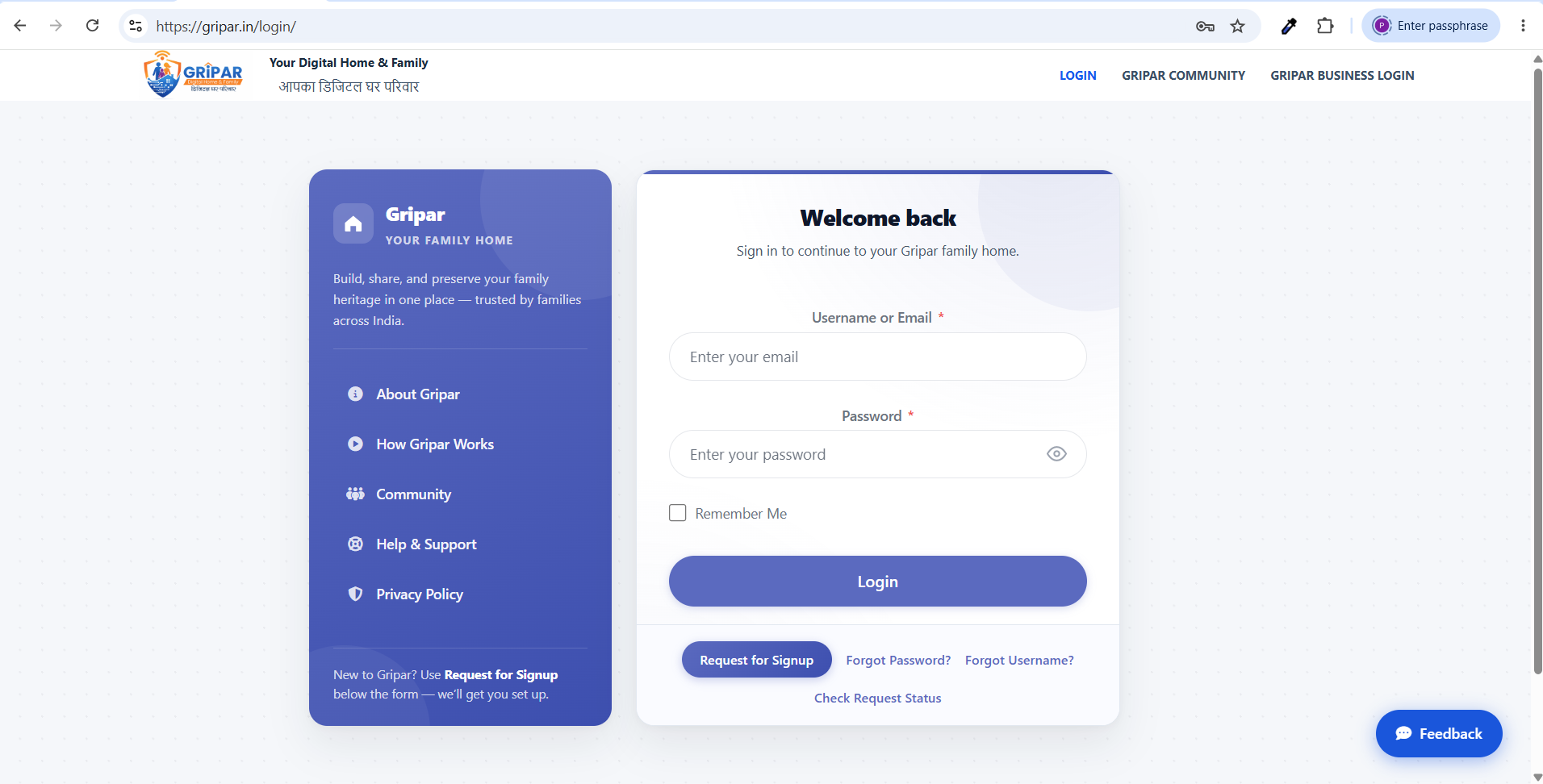
On the homepage, click the Request for Signup link. A pop-up form will appear — fill in all required details and submit.
💡 Tip: Double-check your email address — the OTP for verification will be sent there.
 |
|
3
|
📧
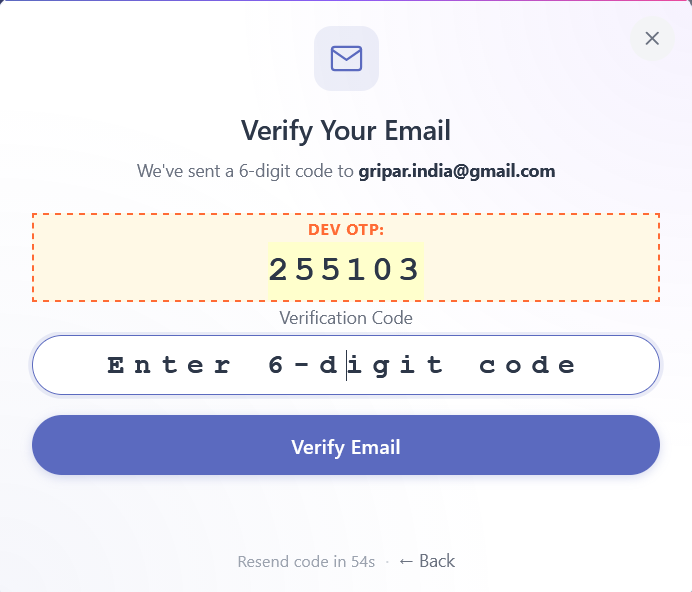
Verify Your Email with OTP
An OTP will be sent to the email you entered. Enter the code to verify your email and submit your signup request.
● ● ●
● ● ●
 3.1 OTP Email
The OTP is sent from Gripar Support. If you don’t see it in your Inbox, check your Junk or Spam folder. 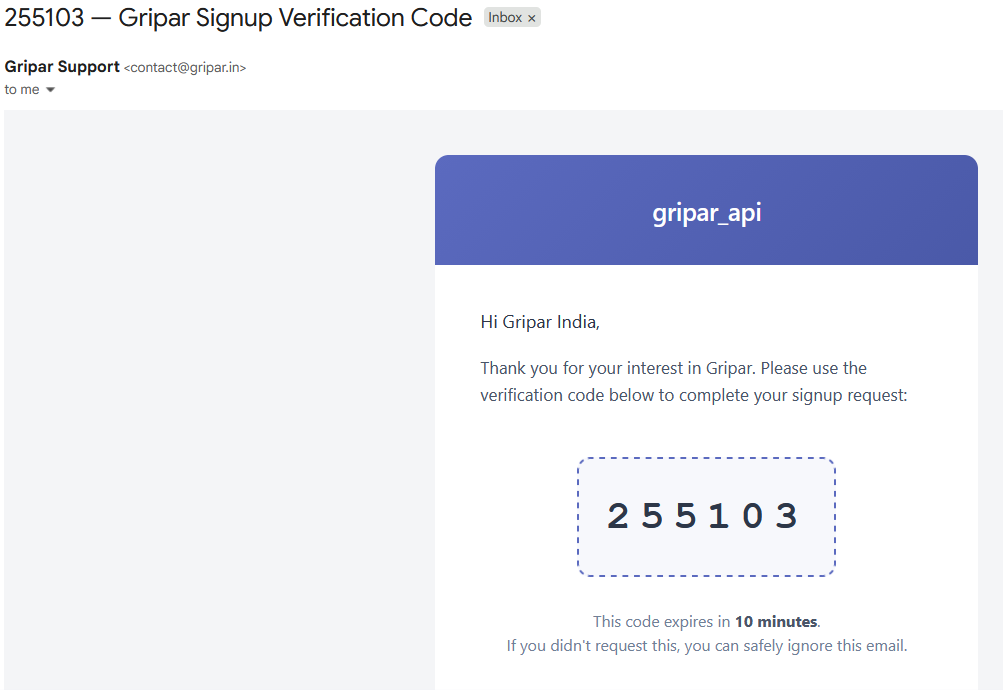 3.2 Request Submitted
After entering the OTP, a Request Submitted confirmation message will appear on screen. 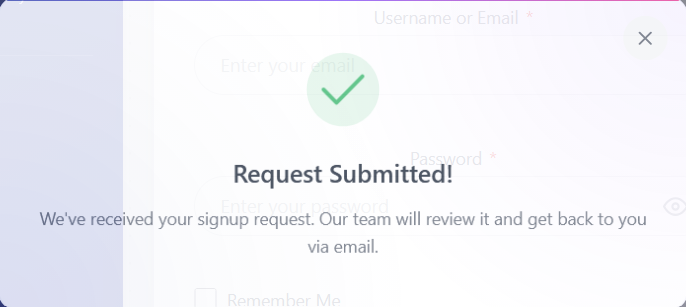 3.3 Check Request Status
While waiting for approval you can check the status of your request at any time from the login page. 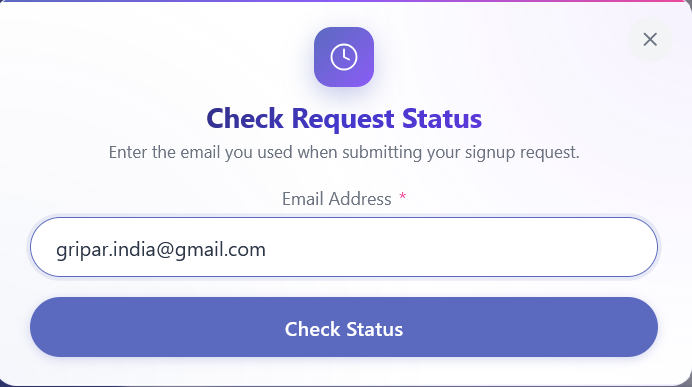 3.4 Second Verification Code
A second verification code will be sent to your email. Enter it to confirm your identity. 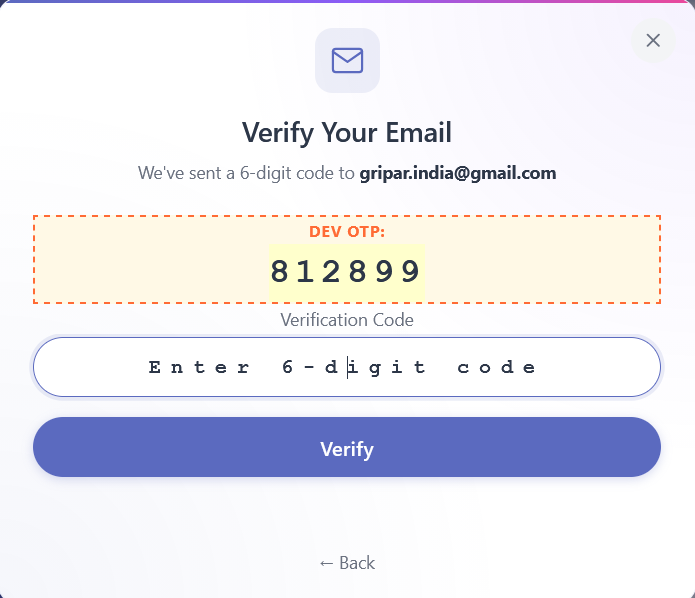 3.5 Request Status
You will see the current status of your submitted request. 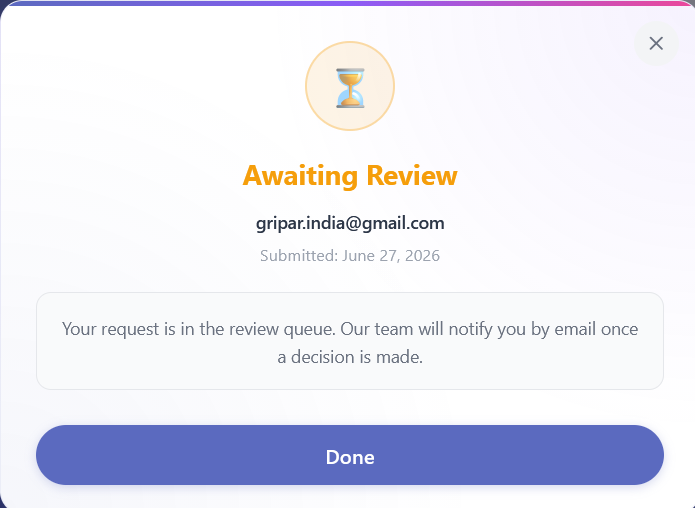 |
|
4
|
✅
Set Your Password & Log In!
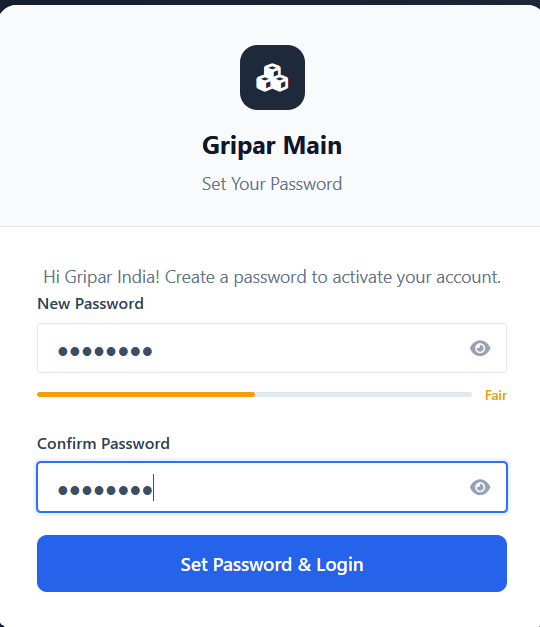
After admin approves your request, you’ll receive a link on your email to set your password. Click the link, set your password, and log in.
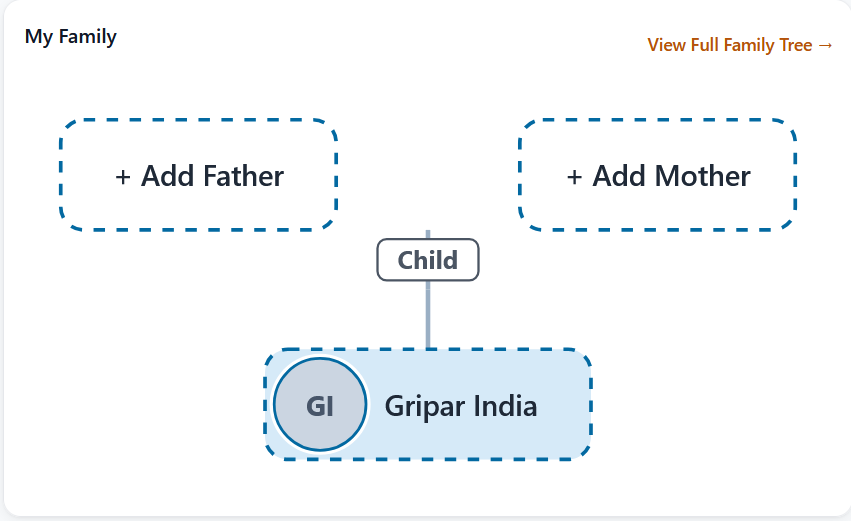
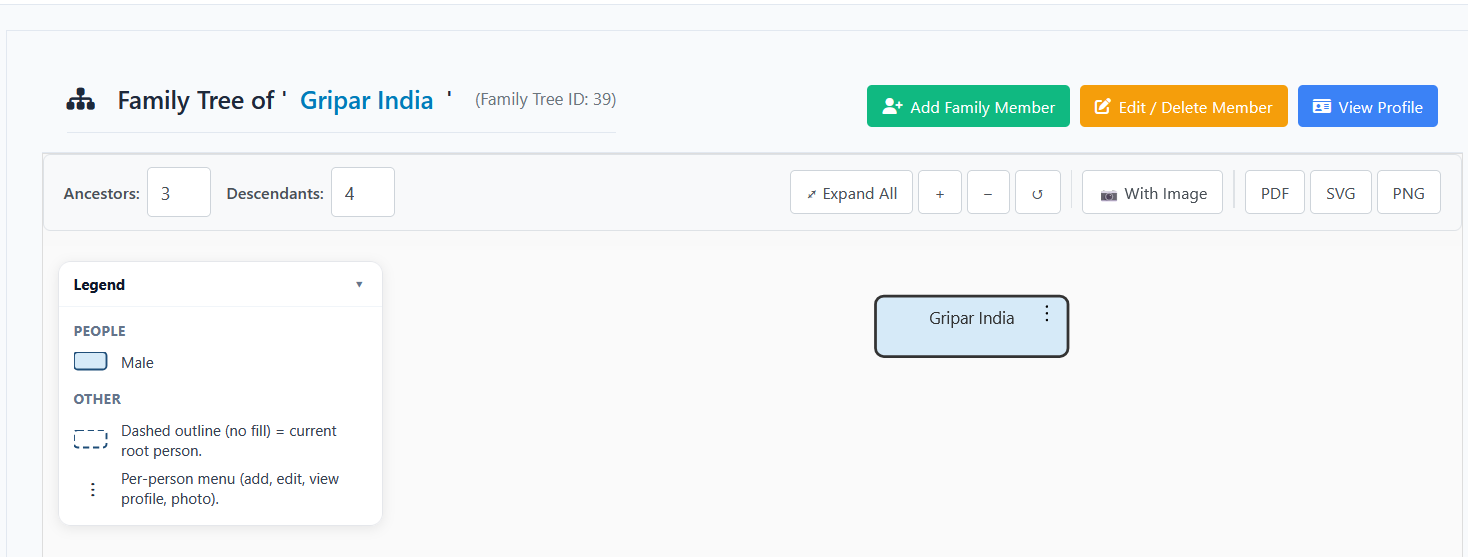
 After login — click Feed, View Full Family Tree, or Family Tree in the left menu:
  |
📋 Quick Tips for a Smooth Signup
✉️ |
Use a valid email you actively check — OTP and approval link both arrive there. |
📱 |
Provide an accurate mobile number for faster admin verification. |
🔒 |
Your data is private — only you and approved family members can view your tree. |
🌳
Ready to build your family tree?
After logging in, follow the Family Tree user manual to add members and map your lineage.
🤝 Need Help?
Our support team is here for signup, approvals, or any questions about Gripar.
📬 Contact Support
🏠 Go to Gripar
Frequently Asked Questions
How long does signing up take?
The entire sign-up process takes under two minutes. It involves 4 simple steps: visiting the site, filling in your details, verifying your OTP, and setting your password.
What is OTP verification?
After entering your details, Gripar sends a One-Time Password (OTP) to your registered mobile number or email address to confirm your identity. Enter the OTP on the verification screen to proceed.
What happens after I sign up?
Once your account is created, you can log in immediately, open your family tree from the dashboard, and start adding family members right away.
Can I change my password after signing up?
Yes. You can update your password anytime from your account settings once you are logged in.
What if I did not receive my OTP?
Check your spam or junk folder first. If the OTP still has not arrived after a minute, use the Resend OTP option on the verification screen. If the problem persists, contact our support team.
General Questions
What is Gripar?
Gripar is a Digital Home & Family platform that helps families build a secure digital family tree, preserve memories and traditions, and stay connected regardless of distance — whether they live in the same house or different countries.
Is Gripar free to use?
Gripar offers a free plan so every family can get started. Sign up to explore the platform and begin building your family tree at no cost.
Is my family data secure on Gripar?
Yes. Gripar uses industry-standard security practices to protect your data. Your family information is private and accessible only to you and the members you invite.
Can family members in different countries use Gripar?
Absolutely. Gripar is designed for families spread across cities and countries. It provides a single trusted platform where everyone can contribute, connect, and share their heritage.
How do I contact Gripar support?
You can reach our support team via the Contact Us page on Gripar. We are happy to help with any questions.