| Default Houses |
|
1
|
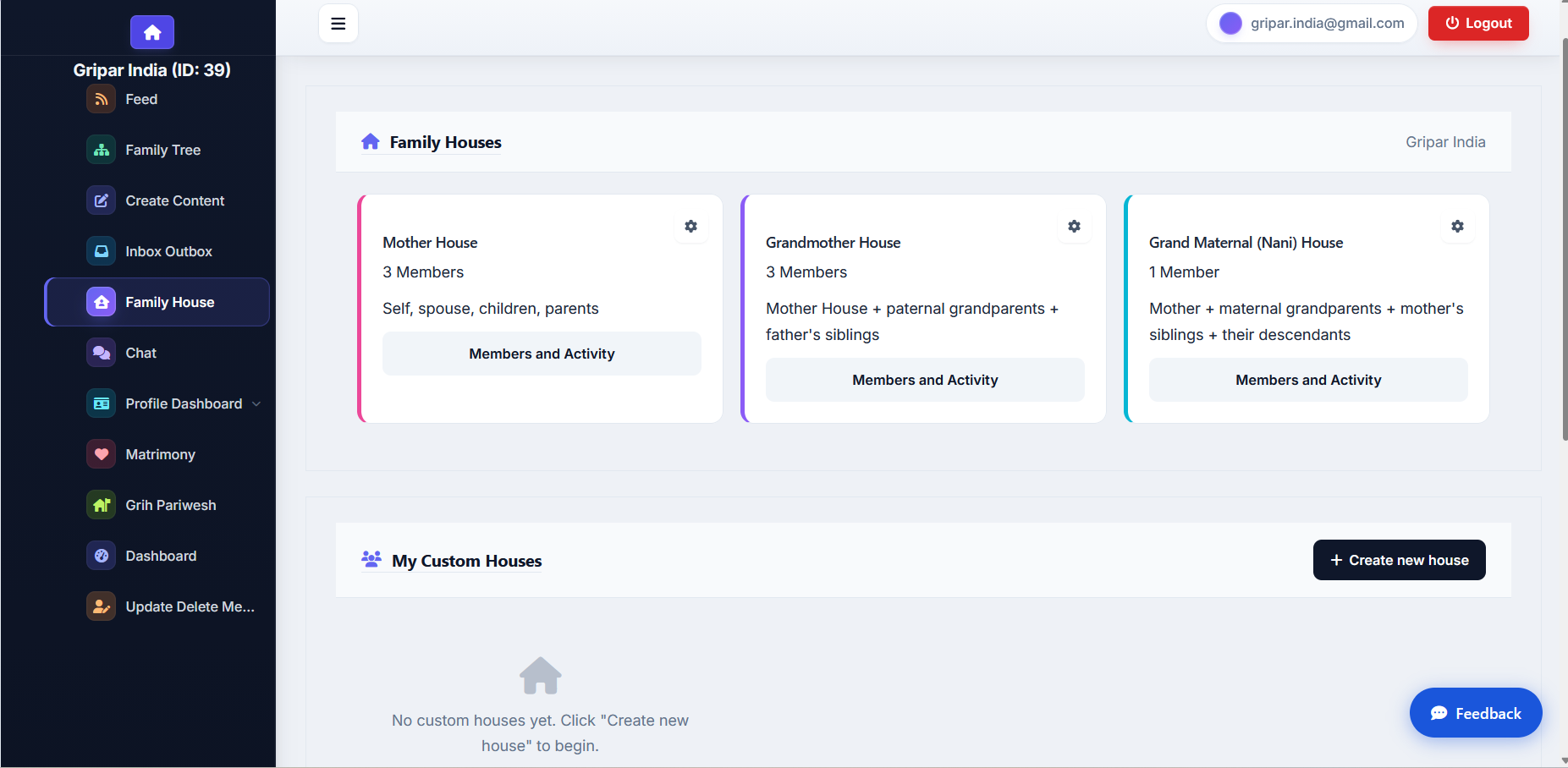
When you complete your first login, Gripar automatically creates three houses based on your family structure:
🏠 Mother House
Includes you, your spouse, your children, and your parents. If you are a married woman or marry later, the Mother House becomes your In-Law House (Sasural).
🏠 Grand Mother House
Extends your Mother House to include paternal grandparents and your father’s siblings.
🏠 Grand Maternal (Nani) House
Includes your mother, maternal grandparents, mother’s siblings, and their descendants.
 |
| Creating a Custom House |
|
2
|
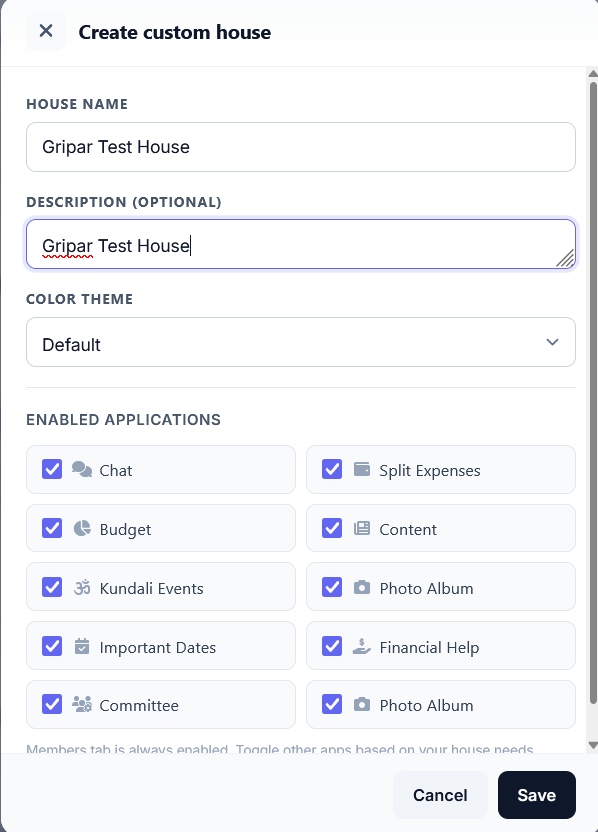
Click Create New House to define your own house. Fill in the following fields:
 |
|
3
|
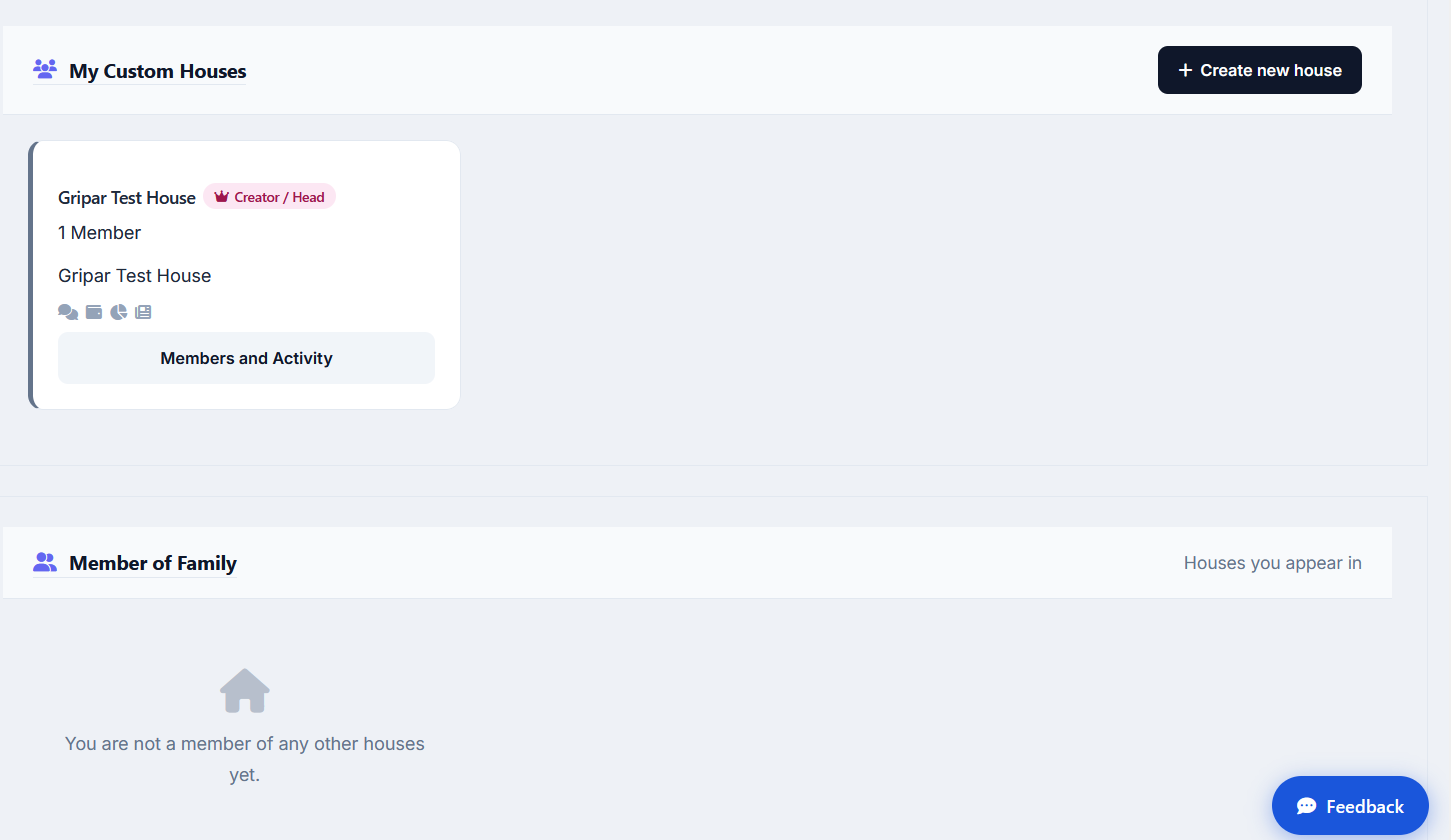
After saving, your custom house appears in the house list alongside the default houses. The Member of Family section below the list shows houses created by other users where you are a member of their family.
 |
| Managing Members |
|
4
|
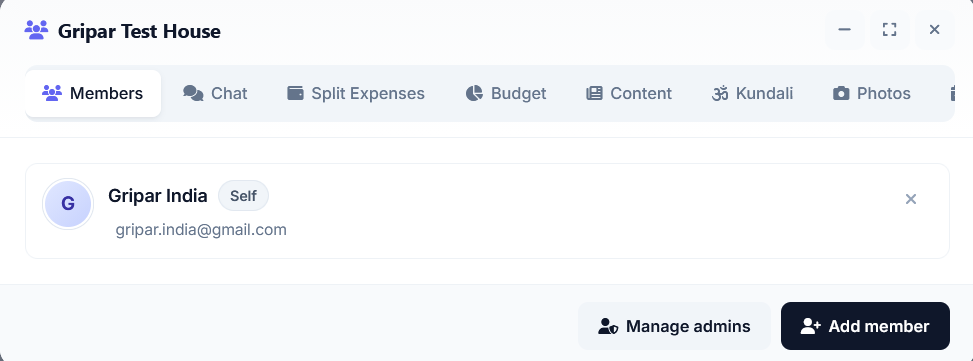
Every house — default or custom — has a Members and Activity button. Click it to view the list of members, enabled applications, and a log of activities performed within the house.
 |
|
5
|
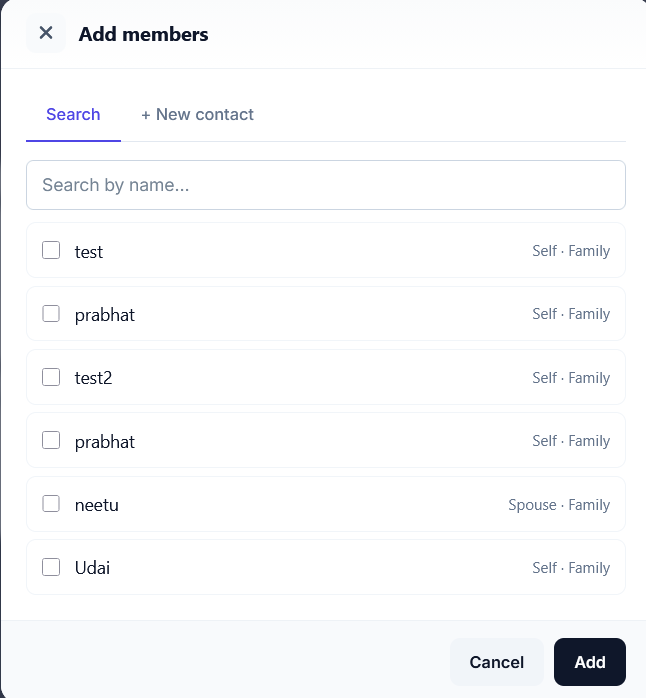
Click Add Member inside a custom house. Members of system-created default houses cannot be added manually — they are determined by your family tree. The Add Member panel has two tabs:
🔍 Search
Search for an existing Gripar member by name and add them directly to the house.
👤 New Contact
For someone who is not yet on Gripar. Enter their details and send an invitation.
 |
|
6
|
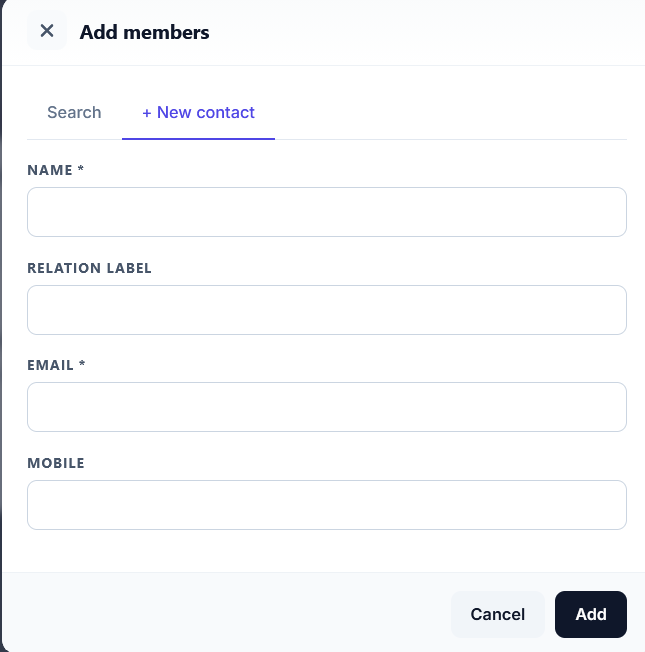
If the person is not on Gripar yet, switch to the New Contact tab and fill in their details:
💡 Tip: Clicking Add sends an invitation email. The person can join the house with or without a Gripar account.
 |
Inside a House
7
🧩
House Apps — the tabs inside a house
Click Members and Activity on any house. Along the top you'll find a tab for every app switched on for that house:
| Tab | What it's for |
|---|---|
| Members | Everyone in the house, with activity. |
| Chat | A private group chat for the house. |
| Split Expenses | Share costs and settle who owes whom — guide. |
| Budget | Household income, plans, daily expenses and bills — guide. |
| Content | Posts with text and a featured image for house members. |
| Kundali | Kundali profiles plus events and remedies. |
| Photos | Albums — upload up to 10 photos at a time. |
| Dates | Birthdays, anniversaries and other important dates. |
| Loans | Financial Help — request or offer help within the family and record repayments. |
| Committee | Start and run a family committee. |
8
⚙️
House Settings & Admins
- The ⚙ gear on a house card opens its settings. Only the house owner sees it.
- App Settings — tick or untick Chat, Split Expenses, Budget, Content, Kundali Events, Photo Album, Important Dates, Financial Help and Committee. Unticked apps disappear from the house.
- Manage admins (custom houses) — give trusted members admin rights so they can add members and help run the house.
- Custom houses show the icons of their enabled apps on the card, and the owner can delete a custom house from its card.
9
👪
Separate a Sibling
When a brother sets up his own household, or a sister marries, they should no longer appear in your Mother House.
- Open your own Mother House → Members and Activity.
- Click Separate sibling at the top of the member list.
- Tick one or more siblings and click Separate selected.
Gripar remembers the separation by person, so it holds even if the sibling registers on Gripar later — their own Mother House is built without you, and yours without them.
10
💍
Married couples share one house
A wife's In-Laws (Sasural) House and her husband's Mother House are the same household. When both spouses are linked on Gripar, the two houses share one member list and the same app data — each spouse still sees the house under their own name. Nothing needs to be entered twice.
🤝
Need Help?
Our support team is happy to help you set up and manage your family houses.
Frequently Asked Questions
What is a Family House on Gripar?
A Family House is a digital space that groups family members together based on their relationship. When you sign up, Gripar automatically creates three default houses — Mother House, Grand Mother House, and Grand Maternal (Nani) House — representing the key branches of your family.
What are the three default houses created at sign-up?
Mother House includes you, your spouse, children, and parents. Grand Mother House extends to paternal grandparents and father's siblings. Grand Maternal (Nani) House includes maternal grandparents, mother's siblings, and their descendants.
Can I create my own custom house?
Yes. Click Create New House, enter a house name, description, and colour theme, and select the applications you want to enable. You can add or remove applications at any time.
Can I add members to a system-created default house?
No. Members of the three default houses are determined automatically from your family tree. You can only add members manually to custom houses you create yourself.
What is the "Member of Family" section?
This section lists houses created by other Gripar users where you have been added as a member of their family. It lets you stay connected with extended family who manage their own houses.
How do I invite someone who is not on Gripar?
Use the New Contact tab when adding a member. Enter their name, email, and optionally their mobile number and relation label. Gripar will send them an invitation email to join the house — they can participate even without a Gripar account.
General Questions
What is Gripar?
Gripar is a Digital Home & Family platform that helps families build a secure digital family tree, preserve memories and traditions, and stay connected regardless of distance — whether they live in the same house or different countries.
Is Gripar free to use?
Gripar offers a free plan so every family can get started. Sign up to explore the platform and begin building your family tree at no cost.
Is my family data secure on Gripar?
Yes. Gripar uses industry-standard security practices to protect your data. Your family information is private and accessible only to you and the members you invite.
Can family members in different countries use Gripar?
Absolutely. Gripar is designed for families spread across cities and countries. It provides a single trusted platform where everyone can contribute, connect, and share their heritage.
How do I contact Gripar support?
You can reach our support team via the Contact Us page on Gripar. We are happy to help with any questions.